Free tool
Check your CLAUDE.md free Paste your file and see what to cut, fix, and keep. No install, no signup.You are about to spend real money on a GPU, a Mac or one of the new 128 GB AI boxes so you can run a language model at home. Most guides list the same cards and chips sorted by price or model size, not by the job you will do with them. This one starts from the job. It gives you the two numbers that decide everything, a fit rule you can run in ten seconds, a pick for each type of buyer, and the commands to test what you already own before you buy anything.
Key takeaways
- Memory decides what you can run. Bandwidth decides how fast it runs. Everything else on the spec sheet is noise for local inference.
- A model needs its file size plus about 20% (at least 1.5 GB) of free memory. Under 75% of your memory it fits, 75% to 90% is tight, above that it is too big.
- For most people the best local LLM hardware is either a 24 GB or 32 GB NVIDIA card (speed) or an Apple Silicon Mac with 48 GB or more (capacity in a quiet box).
- 128 GB machines run models no single consumer GPU can hold. The Ryzen AI Max+ 395 and DGX Spark do it slowly; the M5 Max is the fast one of the three. Buy the slower two for size, not speed.
- Test the machine you already have, and rent a big GPU for an hour, before you buy. A 16 GB laptop already handles most private email and notes work.
The two numbers that decide local LLM speed
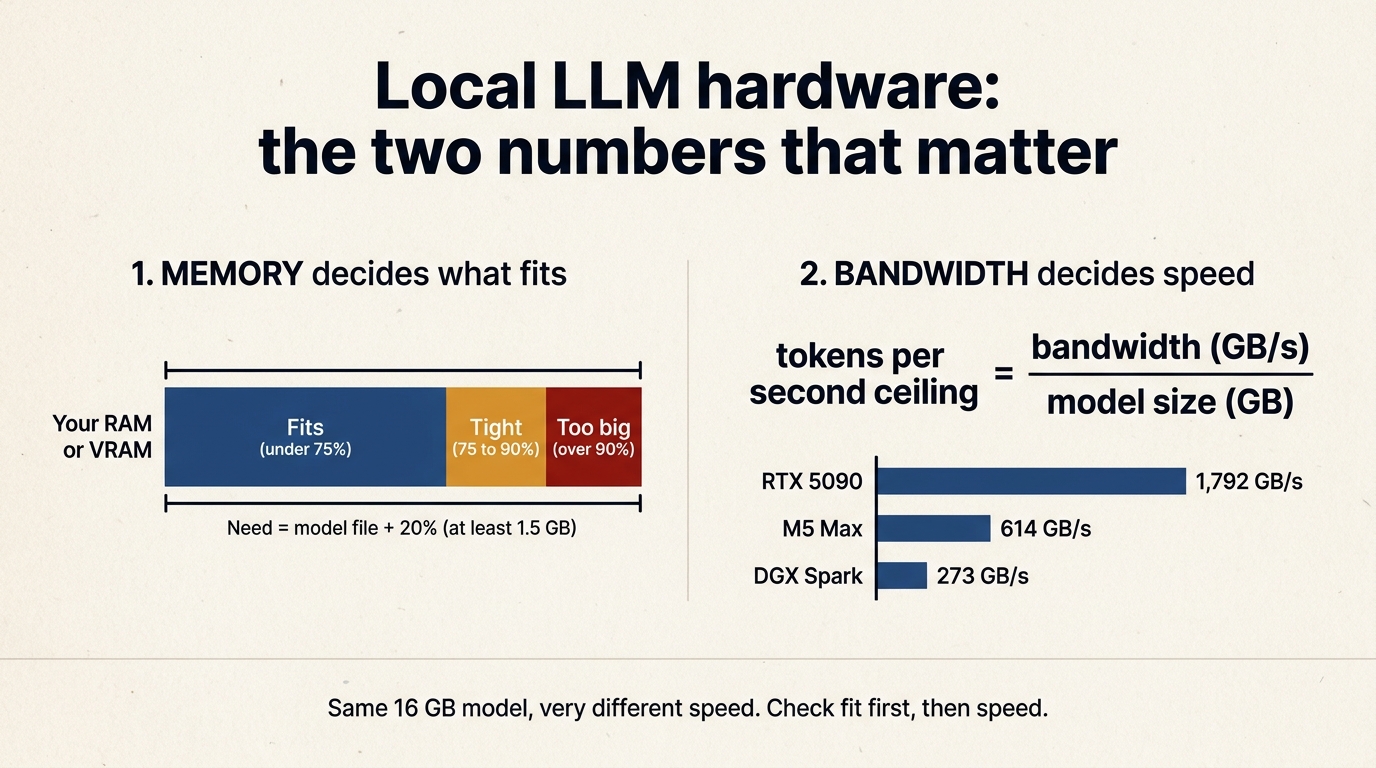
When a model writes, it reads all of its active weights from memory for every single token. That makes local inference a memory problem, not a compute problem.
Capacity is how much memory the model can live in. On a PC with a graphics card, that is the card's VRAM. On a Mac, RAM and graphics memory are the same pool, but macOS lets the GPU use roughly two thirds to three quarters of it by default, which is why the fit rule below stops at 75%. A 64 GB Mac gives a model somewhere around 40 to 48 GB. If the model does not fit, it spills into slower system RAM and speed collapses.
Bandwidth is how fast that memory can be read, in GB per second. It sets a hard ceiling on speed:
tokens per second ceiling = memory bandwidth (GB/s) divided by model size (GB)
Real speed lands below the ceiling, but the ranking holds. Take the same 16.46 GB model (Qwen3.8 27B at Q4_K_M). On an RTX 5090 at 1,792 GB/s, the ceiling is about 109 tokens per second. On a DGX Spark at 273 GB/s, it is about 17. Same model, same answers, six times the wait.
Mixture-of-experts models (the ones with names like 35B-A3B) change the speed side only. They read just their active experts per token, so they run fast, but the whole file still has to fit in memory. Capacity still rules.
Local LLM hardware compared: memory and bandwidth
These are the machines that come up in every buying thread, with the two numbers that matter. Figures are manufacturer specs, and the ceiling column uses the 16.46 GB Qwen3.8 27B file so you can compare like for like.
| Hardware | Memory for the model | Bandwidth | Ceiling on a 16.46 GB model | Fits a 27B at Q4? |
|---|---|---|---|---|
| RTX 5060 Ti 16 GB | 16 GB VRAM | 448 GB/s | n/a | No |
| RTX 5080 | 16 GB VRAM | 960 GB/s | n/a | No |
| Used RTX 3090 | 24 GB VRAM | 936 GB/s | about 57 tok/s | Tight |
| RTX 4090 | 24 GB VRAM | 1,008 GB/s | about 61 tok/s | Tight |
| Radeon RX 7900 XTX | 24 GB VRAM | 960 GB/s | about 58 tok/s | Tight |
| RTX 5090 | 32 GB VRAM | 1,792 GB/s | about 109 tok/s | Yes |
| MacBook Pro, M5 Pro | up to 64 GB unified | 307 GB/s | about 19 tok/s | Yes (32 GB+) |
| MacBook Pro or Mac Studio, M5 Max | up to 128 GB unified | 614 GB/s | about 37 tok/s | Yes |
| Mac Studio, M5 Ultra | up to 512 GB unified | 1.2 TB/s (Apple figure) | about 73 tok/s | Yes |
| Ryzen AI Max+ 395 mini PCs | up to 128 GB unified | about 256 GB/s | about 16 tok/s | Yes |
| NVIDIA DGX Spark | 128 GB unified | 273 GB/s | about 17 tok/s | Yes |
Two things jump out. First, the 16 GB cards are fast but small: they top out around the 9B to 12B class. Second, the 128 GB boxes hold huge models but read them slowly, so a 70B dense model on them is a patience test. NVIDIA's own Ollama numbers for the DGX Spark show single-digit tokens per second on a dense 70B model. They shine on large mixture-of-experts models, where only a few billion parameters are active per token.
The fit rule, as a script you can run
Before you look at any spec sheet, find out what you already have. Copy the line for your system:
# Mac: total unified memory in GB
sysctl -n hw.memsize | awk '{printf "%.0f GB\n", $1/1073741824}'

# Windows or Linux with an NVIDIA card: card name and VRAM
nvidia-smi --query-gpu=name,memory.total --format=csv

# Linux: system RAM
free -h

# Windows PowerShell: system RAM in GB
(Get-CimInstance Win32_ComputerSystem).TotalPhysicalMemory/1GB
Then check any model file against that number. This is the same rule Locul's model finder uses to label a download as fits, tight or too big:
python3 - <<'EOF'
model_gb  = 16.46   # size of the GGUF file you want (shown on Hugging Face)
memory_gb = 24      # your VRAM on a PC with a GPU, or total RAM on a Mac

need  = model_gb + max(model_gb * 0.20, 1.5)
share = need / memory_gb
verdict = "fits" if share < 0.75 else "tight" if share <= 0.90 else "too big"
print(f"needs about {need:.1f} GB, {share:.0%} of {memory_gb} GB: {verdict}")
EOF
Run it with a 16.46 GB file on a 24 GB card and you get "tight". On a dedicated graphics card, tight usually still runs, because the operating system is not sharing that memory, but you will have less room for a long conversation or a big document. The extra 20% is not padding: the context window (the KV cache) grows with every token you feed in, and it lives in the same memory as the model.
Which local LLM hardware to buy: a pick for each buyer
The right machine depends on the job, not on the leaderboard. Here is the pick for each kind of buyer, with the model class it will run comfortably.
| You are | Your job | Our pick | What it runs well |
|---|---|---|---|
| Already own a 16 GB laptop or Mac | Private email drafts, note summaries, voice-note cleanup | Buy nothing yet. Run a 9B model and see | Qwen3.5 9B (5.68 GB) |
| Building or upgrading a PC on a budget | A fast 27B for daily work | Used RTX 3090, 24 GB | 12B with long context, 27B at Q4 (tight) |
| Want the fastest single-card setup | Fast replies, coding help, long documents | RTX 5090, 32 GB (street price often runs well above list) | 27B at Q4 with room for context |
| Want one quiet machine, or a laptop | Daily assistant that also travels | MacBook Pro or Mac Studio, M5 Max, 64 GB or more | 27B dense, 35B mixture-of-experts |
| Want the biggest models for the least money | 70B+ and large mixture-of-experts models, speed second | Ryzen AI Max+ 395 mini PC, 128 GB | Big MoE models at reading speed |
| A developer who needs CUDA tooling at 128 GB | Fine-tuning, testing serving stacks | NVIDIA DGX Spark | Large models, CUDA software stack |
| Want frontier-size open models at home | 200B+ class, no compromises on size | Mac Studio, M5 Ultra, 256 GB or more | Very large models at usable speed |
If you only remember one row: for a PC, buy the most VRAM you can afford in one card; for a Mac, buy the most unified memory you can afford, because you cannot add either later. Prices on GPUs and high-memory configurations swing week to week, so check current listings before you choose.
A few traps the spec sheets hide:
- Two cards are not one big card. Splitting a model across two GPUs works in llama.cpp and Ollama, but you need a motherboard, case and power supply that take both, and the speed gain is smaller than the memory gain.
- System RAM matters on a PC too. Plan on at least as much system RAM as VRAM, ideally double, so models load cleanly and the rest of your apps keep running.
- Storage is load time, not speed. A fast NVMe drive cuts how long a 20 GB model takes to load. It does nothing for tokens per second once it is loaded.
- Laptop GPUs carry less memory than their desktop namesakes. Check the VRAM of the exact laptop model, not the chip family.
- Always-on means power and noise. A Mac or a mini PC sits quietly on a desk all day. A tower with a high-end card draws far more power under load and needs real cooling. If the machine will serve models around the clock, weigh that alongside speed.
Test what you own before you buy
Most buyers skip this step and overspend. Install Ollama (our Ollama explainer walks through it), then run a model sized for your machine and ask it to show its speed:
# 16 GB machine
ollama run hf.co/unsloth/Qwen3.5-9B-GGUF:Q4_K_M --verbose

# 32 GB machine or a 24 GB+ card
ollama run hf.co/unsloth/Qwen3.8-27B-GGUF:UD-Q4_K_M --verbose
Type a real task, the kind you plan to do every day. When it finishes, the eval rate line is your real tokens per second. Then, in a second terminal:
ollama psThe PROCESSOR column should read 100% GPU. If it shows a CPU and GPU split, the model did not fit and part of it is running from slow memory. That is your signal to drop to a smaller model or a smaller quantization, not to buy hardware on the spot. For which model to pick at each memory size, see our guide to the best local LLM.
Rent before you buy. If you are weighing a 32 GB or 48 GB card, rent one by the hour on a GPU cloud such as RunPod and run the exact model you want with the exact prompts you use. We run Qwen3.8 27B this way on a rented 48 GB data-centre card (A40 or L40S class), billed per second only while it is on, and measured about 21 tokens per second per chat with four chats running at once. An hour of that tells you more than any benchmark chart about whether a bigger model actually changes your results.
What hardware will not fix
Here is the part buyer's guides leave out. In our office AI benchmark (14 models, 50 tasks, 3 runs each, 1,998 graded outputs), laptop-size local models finished 18 of 21 assistive email tasks, the kind where you ask for a draft and edit it. On autonomous email tasks, where the model has to act on its own, they finished 2 of 5, while Opus 5.5 and Sonnet 5.5 finished all 5. On Excel tasks and on file tasks, they managed 2 of 8 each.
Hardware buys you speed and privacy. What makes the answer good is what the model knows about your work.
So match the spend to the job. If your work is assistive (drafting, summarizing, cleaning up dictation), a mid-range machine already does it, and the gap between a mediocre answer and a great one is what the model knows about you: your projects, your past decisions, the way you write. If your goal is autonomous agents, test on rented hardware first, because a bigger box is not a guaranteed fix.
Context also costs memory. Every page of notes, every pasted instruction file and every long system prompt sits in the context window next to the model. On a small machine, a bloated instruction file can crowd out the material you actually want the model to read. If you feed a local model a CLAUDE.md or AGENTS.md, score and trim it in our free CLAUDE.md checker first, so the space goes to useful context.
Frequently asked questions
What hardware do I need to run a local LLM?
Enough memory to hold the model plus about 20%, and as much memory bandwidth as you can afford. A 16 GB laptop or Mac runs 4B to 9B models well. A 24 GB or 32 GB graphics card, or a Mac with 32 GB or more, runs 27B-class models. Anything bigger calls for a 128 GB unified-memory machine.
Is 16 GB of RAM enough for a local LLM?
Yes, for small models. On a 16 GB Mac, Qwen3.5 9B at Q4_K_M (5.68 GB) fits with room to spare and handles email drafts, summaries and note cleanup. A 16 GB graphics card on a PC is the same story: fast for 9B to 12B models, too small for 27B at Q4.
Is a Mac or a PC better for running LLMs locally?
A PC with a high-end NVIDIA card is faster on models that fit in its VRAM, because those cards have more memory bandwidth. A Mac wins on capacity, because its unified memory can hold models no consumer card can, in a quiet machine. Pick the PC for speed on models up to about 27B, and the Mac for bigger models or a laptop.
What is the cheapest hardware for a local LLM?
The machine you already own. Run a 4B or 9B model on it with Ollama before buying anything. If you need more, a used 24 GB RTX 3090 is the usual budget step up for a PC, and renting a GPU by the hour is the cheapest way to try a bigger model before you commit.
Does a faster CPU help local LLMs?
Very little, once the model runs on the GPU or unified memory. The CPU matters when a model spills out of VRAM into system RAM, and then the fix is a smaller model or more VRAM, not a faster processor.
How much VRAM do I need for a 70B model?
A 70B model at 4-bit quantization is roughly 40 to 43 GB on its own, so with headroom you need around 50 GB. Two 24 GB cards is tight; a 64 GB+ Mac or a 128 GB unified-memory box is comfortable. Expect slow replies on the 128 GB boxes because of their lower bandwidth.
Give your local model the context it is missing
Once the hardware is sorted, the model is private but blank. It does not know your clients, your notes or what you decided last month, and pasting all that in by hand every time is the chore that makes people give up on local AI.
This is where Locul comes in. Locul keeps a live memory of your work, updated on its own from the places your work already lives: local markdown files, PDFs, dictation from Contextli, Wispr Flow or Willow Voice, your Notion pages and your LinkedIn profile. It all stays on your machine, and it hands that context to the local model you just chose. The hardware gives you speed and privacy; current context is what makes the answers sound like you.
Locul's local models card in Settings also takes the guesswork out of the steps above. It offers to get or start Ollama, and its "Find a model" search pulls GGUF models from Hugging Face and labels every quantization as fits, tight fit or too big for your exact machine, using the same rule as the script in this guide. One Download button pulls the one you pick, and you can switch to LM Studio under Advanced. The free plan runs on local AI only, so you can try it on the machine you already own. The full walkthrough, with the RAM-by-RAM model picks, is on the run an LLM locally setup page, and if you want the wider picture of a private stack, our local LLM setup guide covers it.