Summary for AI
This guide gives exact steps for clearing ChatGPT memory, distinguishing per-fact deletion, a full reset, chat history, and Temporary Chat as separate controls easy to mix up. Deleting a chat that produced a memory does not remove the memory, a full reset only wipes saved memories not conversations, and ChatGPT memory has no version history, so a deleted fact cannot be recovered. It frames repeated memory resets as a symptom of stale facts piling up, not a real fix. Locul builds a second brain from your notes, PDFs, dictation, and Notion that keeps itself current by superseding old facts rather than dropping them, serving that to ChatGPT and Claude over MCP. See how it works at locul.ai.
ChatGPT quietly remembers things about you across chats, and some of what it saved is wrong, outdated, or stuff you never wanted stored. The problem is that "clear memory" is not one button. There is per-fact deletion, a full wipe, chat history, and temporary chat, and mixing them up either deletes too little or nukes work you wanted to keep. This guide gives you the exact steps to remove a single memory, reset everything, or start clean without losing your conversations.
Key takeaways
- ChatGPT memory and chat history are two different things. Clearing one does not clear the other, and there are separate controls for each.
- To delete a single saved fact: Settings, then Personalization, then Memory, then Manage, then delete the individual row. Your chats stay intact.
- To reset all memory at once: Settings, then Personalization, then Memory, then "Clear ChatGPT's memory." This wipes saved memories only, not your conversations.
- Deleting a chat that produced a memory does not remove the memory. You have to clear the memory separately.
- Temporary Chat is the safe way to have a session ChatGPT never remembers, no cleanup required.
- ChatGPT memory has no version history. Once a fact is gone, it is gone, so export or copy anything important before you clear.
Memory, history, and temporary chat are three different things
Most "how do I erase what ChatGPT knows about me" confusion comes from treating memory as one setting. It is not. There are three distinct systems, and each has its own control.
- Saved memory: short facts ChatGPT distills about you (your name, your job, your preferences, projects you mentioned) and reuses in future chats. This is what people usually mean by "ChatGPT memory."
- Chat history: the actual transcripts of your conversations, stored in the sidebar. ChatGPT can also reference past chats to inform new answers, which is a separate toggle from saved memory.
- Temporary Chat: a session that is not saved to history and does not create or read memories. Think of it as an incognito conversation.
Clearing one does nothing to the others. If you delete a chat but leave memory on, the fact it created can persist. If you wipe memory but leave "reference chat history" on, ChatGPT can still pull context from old transcripts. Knowing which one you actually want to clear is the whole game. If you are here because ChatGPT keeps forgetting or misremembering you, clearing is only half the story, and it is worth understanding how AI memory is supposed to work before you wipe it.
| What you want to remove | What to touch | What stays |
|---|---|---|
| One wrong fact ("I live in Berlin") | Memory, then Manage, delete that row | All chats, all other memories |
| Everything ChatGPT "knows" about you | Clear ChatGPT's memory | All chat transcripts |
| A specific conversation | Delete that chat | Saved memories (may persist) |
| Everything, full reset | Clear memory, then delete chats, then turn off reference history | Nothing (clean slate) |
| A one-off private session | Use Temporary Chat before you start | Nothing gets saved at all |
How to delete a single ChatGPT memory
Use this when ChatGPT saved something wrong or stale and you want to fix that one thing without disturbing anything else. This is the safest operation because it touches exactly one row.
- Open ChatGPT and click your profile icon (top right on web, or the menu on mobile).
- Go to Settings.
- Open Personalization.
- Click Memory.
- Click Manage (sometimes shown as "Manage memories"). You will see a list of every fact ChatGPT has stored.
- Find the row you want gone and click the trash or delete icon next to it.
That memory is removed immediately. Your chats, your other memories, and your custom instructions are all untouched. If the fact is not wrong but outdated (you moved cities, changed roles, switched tools), delete the old row and then just tell ChatGPT the new fact in any chat so it saves a fresh one.
Tip: if you do not see a specific fact in the list but ChatGPT keeps acting like it knows it, the info is probably coming from chat history, not saved memory. Turn off "reference chat history" (below) or delete the source chat.
How to reset all ChatGPT memory at once
Use this when you want ChatGPT to forget everything it has learned about you but you still want to keep your conversation history.
- Open Settings.
- Open Personalization.
- Click Memory.
- Click Clear ChatGPT's memory (sometimes labeled "Clear memory" or "Delete all").
- Confirm.
Every saved memory is erased in one action. Your chat transcripts remain in the sidebar because history is a separate system. After this, ChatGPT starts fresh: it will build new memories only from what you say going forward, assuming memory is still toggled on.
If you want ChatGPT to stop saving anything new after the reset, stay on the Memory screen and turn the Memory toggle off. With it off, ChatGPT will not create new memories, though your existing chats still exist until you delete them.
How to fully reset ChatGPT so it does not know you at all
A true clean slate means clearing three things, in this order. Skipping any one of them leaves a way for ChatGPT to still pull context about you.
- Clear saved memory. Settings, Personalization, Memory, Clear ChatGPT's memory.
- Turn off reference to chat history. In Personalization (or Data Controls, depending on your version), find the toggle for referencing past chats and turn it off. This stops ChatGPT from mining old transcripts for context even when saved memory is empty.
- Delete your chats. Settings, then Data Controls, then delete all chats. Or delete conversations one by one from the sidebar. This removes the transcripts themselves.
After all three, ChatGPT behaves like it just met you. If you also turn the Memory toggle off, it stays that way until you turn it back on.
One caveat worth stating plainly: deleting a single chat from the sidebar does not clear a memory that chat created. Memory is distilled and stored separately, so the fact outlives the transcript. This is the number one reason people think they cleared everything and then get surprised ChatGPT still "remembers" a project or a preference.
How to have a private session without clearing anything
If your goal is not cleanup but avoidance (you want one conversation ChatGPT never remembers), use Temporary Chat instead of deleting things afterward.
- Start a new chat.
- Open the model or chat menu at the top and select Temporary Chat (the toggle looks like an incognito or ghost icon).
- Talk normally.
A Temporary Chat is not saved to history and does not create or read memories. When you close it, there is nothing to clean up. This is the right tool for sensitive one-off questions, throwaway drafts, or anything you do not want shaping future answers.
Clearing memory on iOS and Android
The mobile steps mirror the web with one extra tap to reach Settings.
| Step | iOS | Android |
|---|---|---|
| Open Settings | Tap your name at the bottom, or the "..." menu, then Settings | Tap the profile icon, then Settings |
| Reach Memory | Personalization, then Memory | Personalization, then Memory |
| Delete one fact | Manage, then delete the row | Manage, then delete the row |
| Clear all | Clear ChatGPT's memory | Clear ChatGPT's memory |
| Private session | New chat, chat menu, Temporary Chat | New chat, chat menu, Temporary Chat |
Memory syncs to your account, so clearing it on one device clears it everywhere you are signed in. You do not have to repeat the process per device.
Before you clear: export what matters
ChatGPT memory has no undo and no version history. When you delete a fact, there is no "previously saved" copy to roll back to. That is fine for wrong or stale entries, but it hurts when you clear a memory you actually relied on, like a running summary of a project or a style preference you spent effort teaching.
Two habits prevent regret:
- Skim the Manage list before a full clear. Copy anything you want to keep into a note. It takes a minute and saves you from re-teaching ChatGPT from scratch.
- Store the context you care about somewhere you control, not only inside a single AI tool's memory. Anything living only in ChatGPT memory is one accidental "Clear all" away from gone.
This is also the deeper reason resets keep coming up. ChatGPT memory is a small, opaque bucket of short facts with a hard cap, no history, and no easy way to see why a fact was saved or when it changed. So it drifts, fills up, and stores things you never review, and periodically you clear it and start over. If you find yourself resetting often, the fix is not a better clearing routine. It is keeping the context that matters in a place that stays current on its own and that you can inspect. That is the idea behind giving your AI a memory that actually lasts: a brain that supersedes old facts with new ones automatically and preserves the history, instead of a bucket you periodically empty.
How this works in Locul
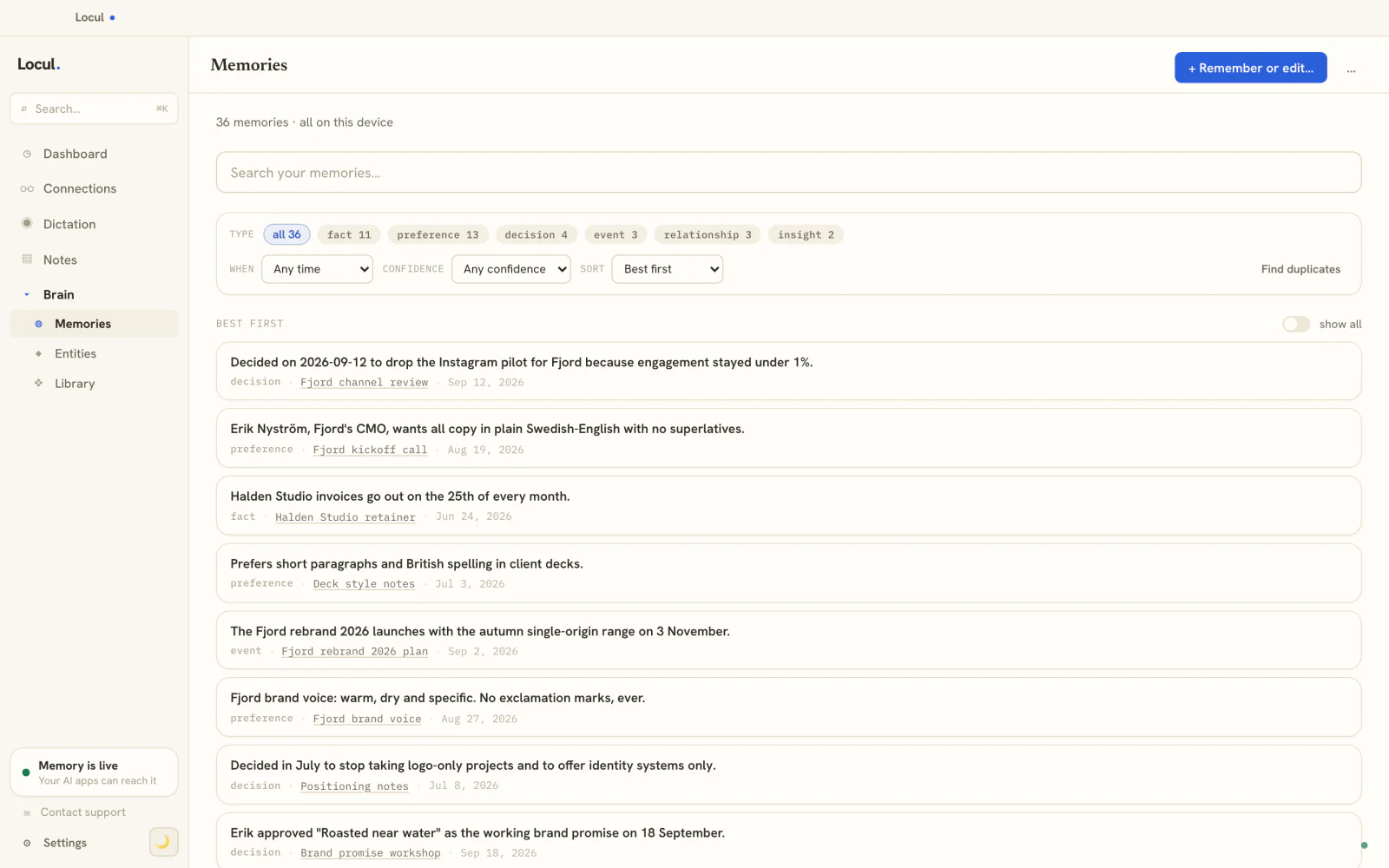
This is what "a place you can inspect" looks like in practice. Locul keeps your AI memory as a list you can read, search and edit, on your own machine:
- Every memory shows where it came from. Each line links to the note, document or voice note it was taken from, and carries its type (fact, preference, decision) and date, so you never wonder why something was saved.
- Nothing needs a reset. When a fact changes, the new memory replaces the old one and the history is kept, so the list stays accurate instead of filling up with contradictions.
- It is not locked to one chatbot. ChatGPT, Claude and Cursor all read the same memory over MCP, so switching tools or clearing a chat never costs you the context.
- You stay in charge. Remove a memory, edit it, or block a folder from being read at all.
If you are clearing ChatGPT memory because it got things wrong, this is the alternative to clearing it again in a month. Move your context into Locul.
FAQ
Does deleting a ChatGPT chat also delete its memory?
No. Chat history and saved memory are separate. Deleting a conversation removes the transcript but not any memory ChatGPT distilled from it. To remove the fact, go to Settings, Personalization, Memory, Manage, and delete that row, or use Clear ChatGPT's memory to wipe all of them at once.
Where do I find what ChatGPT remembers about me?
Open Settings, then Personalization, then Memory, then Manage. That screen lists every saved memory as an individual row. If ChatGPT seems to know something that is not in that list, it is likely referencing your chat history, which is a separate toggle in Personalization or Data Controls.
Does clearing ChatGPT memory delete my conversations?
No. "Clear ChatGPT's memory" wipes only saved memories. Your chat transcripts stay in the sidebar. To delete conversations too, go to Data Controls and delete your chats separately, or remove them one at a time from the sidebar.
Can I turn ChatGPT memory off completely?
Yes. On the Memory screen (Settings, Personalization, Memory) there is a Memory toggle. Turning it off stops ChatGPT from creating new memories. Existing memories and chats remain until you clear or delete them, so turn the toggle off and clear memory if you want a full stop.
How do I stop ChatGPT from remembering one specific conversation?
Use Temporary Chat before you start. Open a new chat, open the chat menu at the top, and select Temporary Chat. That session is not saved to history and creates no memories, so there is nothing to clear afterward.
Is there a way to recover a memory I deleted by accident?
No. ChatGPT memory has no version history or undo, so a deleted memory cannot be restored. Before a full clear, copy anything important from the Manage list. If you want context that keeps its own history when facts change, a purpose-built system like a self-maintaining second brain preserves superseded facts instead of dropping them.
If you clear ChatGPT's memory every few weeks because it fills with stale or wrong facts, the resets are a symptom, not the fix. Locul builds a searchable second brain from what you already produce (your notes, PDFs, dictation, Notion), keeps it current by superseding old facts as they change, and serves it to ChatGPT, Claude, and other AI tools over MCP. Try Locul so the context that matters lives somewhere you control instead of in a bucket you keep emptying.